Integration Guide (SPM - Swift Package Manager)
1. Overview
The TelematicsSDK for iOS is distributed as a private Swift Package that contains a binary XCFramework. It exposes native APIs for user and vehicle management, permissions, and telemetry control.
Read-only access to the repository is required and is granted via a Personal Access Token (PAT) provided by Sentilant.
This guide explains how to integrate and use the SDK via Swift Package Manager
2. Prerequisites
- Xcode: version 26 or higher (the package manifest requires Swift tools 6.2)
- iOS: minimum deployment target iOS 17.0
The SDK requires iOS 17.0 or later to function correctly.
3. Integrate the SDK with SPM
Step 1 — Open the Swift Package Manager window
In Xcode:
File → Add Package Dependencies...
Step 2 — Enter the private repository URL
Insert the URL provided to you in the Search bar of the SPM:
https://github.com/DrivianTelematics/telematics-sdk-ios.git
Step 3 — GitHub Authentication
Since this is a private repository, Xcode will request your GitHub credentials.
Enter the following:
- Username: x-access-token
- Password: the PAT provided by Sentilant
If macOS asks to store this credential in your Keychain, choose Allow.
This ensures that Xcode can fetch and update the Package in the future without prompting for credentials again.
Example
The following example illustrates the full Swift Package Manager flow, including opening the SPM window, entering the private repository URL, and authenticating with the provided GitHub credentials:
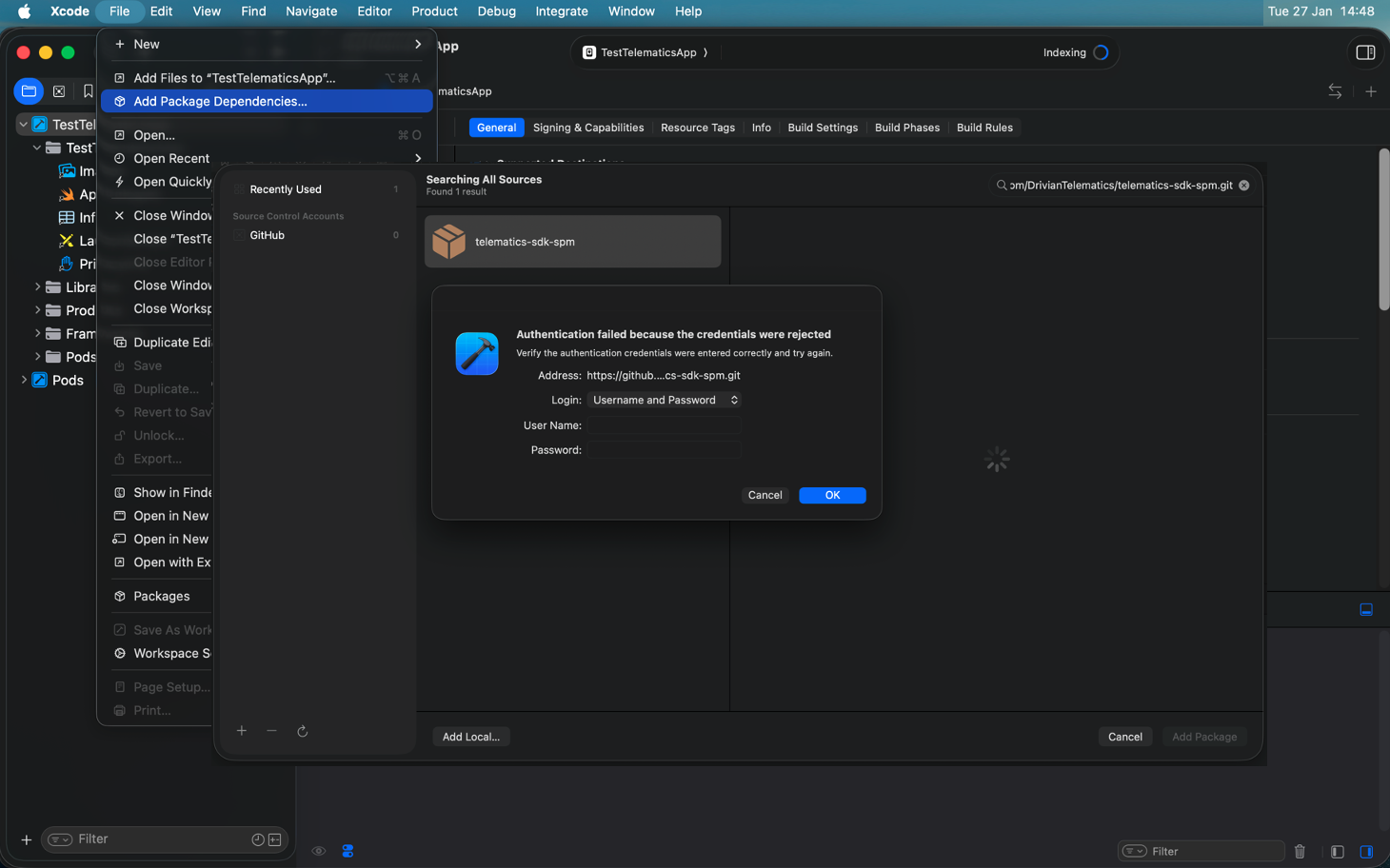
Image 1 - Integration through SPM
Step 4 — Select the version (or configure version rules)
Xcode will now show the available versions of the SDK (Git tags from the private repository). You have two options:
Option A — Select a specific version
If you want to lock the SDK to a fixed version, choose Exact Version and enter the latest release tag, for example:
1.8.4
Option B — Automatically receive compatible updates
If you want Xcode to automatically use newer versions of the SDK as they are released, change the Dependency Rule in the dropdown:
- Up to Next Major Version Allows updates like 1.0.1 → 1.1.0 → 1.5.0 automatically, but blocks breaking changes (e.g., prevents upgrades to 2.0.0).
- Up to Next Minor Version Only updates patch releases (e.g., 1.0.1 → 1.0.2).
Choose the rule that best fits your integration strategy, then click Add Package.
4. Verify the Integration
After importing:
- In the Project Navigator, you should see TelematicsSDK under Package Dependencies.
- Xcode automatically adds the TelematicsSDK.xcframework binary to your target, no manual configuration is required.
4.1 How to confirm the framework is correctly linked
To double-check that the SDK was added to your app target:
- Select your app target in the Project Navigator
- Open the General tab
- Scroll down to Frameworks, Libraries, and Embedded Content
- Confirm that you see the TelematicsSDK library
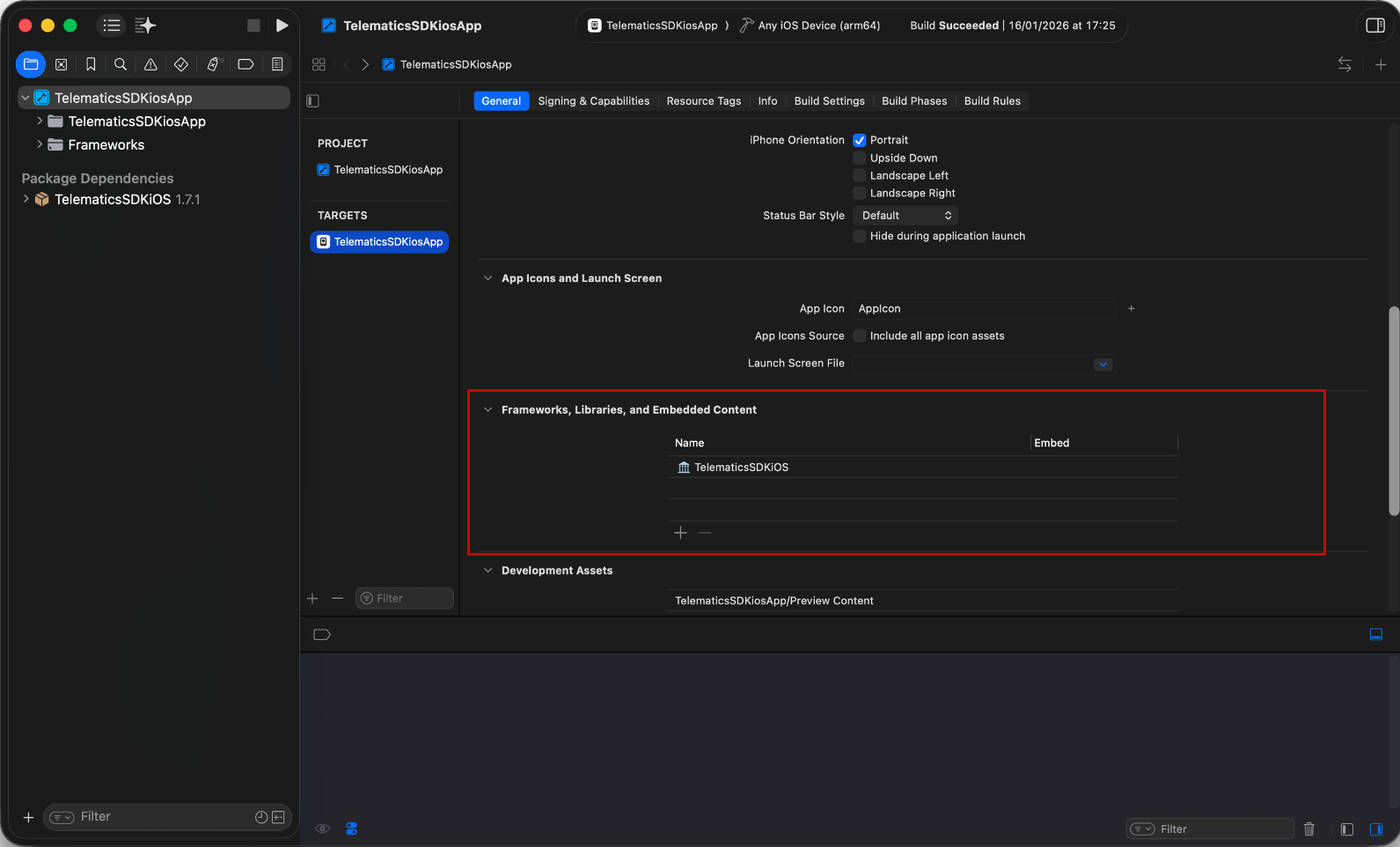
Image 2 - Confirm the framework is linked here
5. Import the SDK in Your Code
In any Swift file where you need the SDK:
import TelematicsSDK

let sdk = TelematicsSDKios()
You can now use all SDK functionality.
6. Updating to a New SDK Version
When a new version is released:
- Go to
File → Packages → Update to Latest Package Versions - Xcode will retrieve the latest version using the token stored in your Keychain.