Permissions Setup
1. Required permissions
For the Telematics SDK to function consistently, the application that integrates it must guarantee a specific set of permissions and system settings. These permissions are not optional, as each one plays a distinct role in the functioning of telemetry.
The SDK depends on continuous location tracking, motion sensors, and the ability for the application to run in the background while these operations are active.
1.1 Location (When In Use)
The Location (When In Use) permission is required to enable telemetry to function while the application is in the foreground.
Although insufficient on its own for continuous background collection, it is used by the system as a basis for:
- initial telemetry operation
- transitions between foreground and background
- validation of permission status when the application is active
1.2 Location (Always)
The Location (Always) permission is mandatory for the SDK to function fully.
This permission allows the application to receive location updates continuously, even when running in the background.
Without this permission:
- Background driving data collection is not possible
- The system suspends the application shortly after it goes into the background
- The SDK is no longer able to collect samples reliably
1.3 Motion
The Motion permission is used to access the device's motion sensors, such as the accelerometer, gyroscope, and activity data.
This permission is essential for:
- detecting driving events
- classifying behavior
- enriching telemetry samples
However, it is important to note that the Motion permission alone does not keep the application active in the background.
Even with Motion authorized, if there are no other active background services (such as location), the system may suspend the application.
1.4 Background Mode — Location updates
In addition to permissions, the application must have the Background Mode “Location updates” enabled in the project capabilities.
This background mode:
- is not a permission granted by the user
- is a capability of the application
- indicates to the system that the app is authorized to run in the background while receiving location updates
Without this background mode active, the system will not allow the application to run continuously in the background, even if location permission has been granted.
2. Enable Capabilities
Now that the required permissions and system requirements are defined, this section explains how to configure them in your iOS project.
2.1 Configure Info.plist
In Xcode, open the application target and locate the Info.plist file.
- Right-click Info.plist
- Select Open As → Source Code
- Add the following Key–Value pairs inside the
< dict>block.
For the permissions:
<key>NSLocationWhenInUseUsageDescription</key>
<string>Your explanation.</string>

<key>NSLocationAlwaysAndWhenInUseUsageDescription</key>
<string>Your explanation.</string>

<key>NSMotionUsageDescription</key>
<string>Your explanation.</string>
Each key must have a string value. This value is the message shown to the user when iOS requests the permission.
2.2 Enable Background Location Updates
Continuous telemetry requires background execution while receiving location updates.
Ensure the following entry exists in Info.plist:
<key>UIBackgroundModes</key>
<array>
  <string>location</string>
</array>
This configuration declares that the application is allowed to run in the background while receiving location updates.
After completing these steps, the application is correctly configured to request the required permissions and to support continuous background telemetry.
2.3 Example
Here you can see an example on how to do this in Xcode and how the Info.plist file should look like:
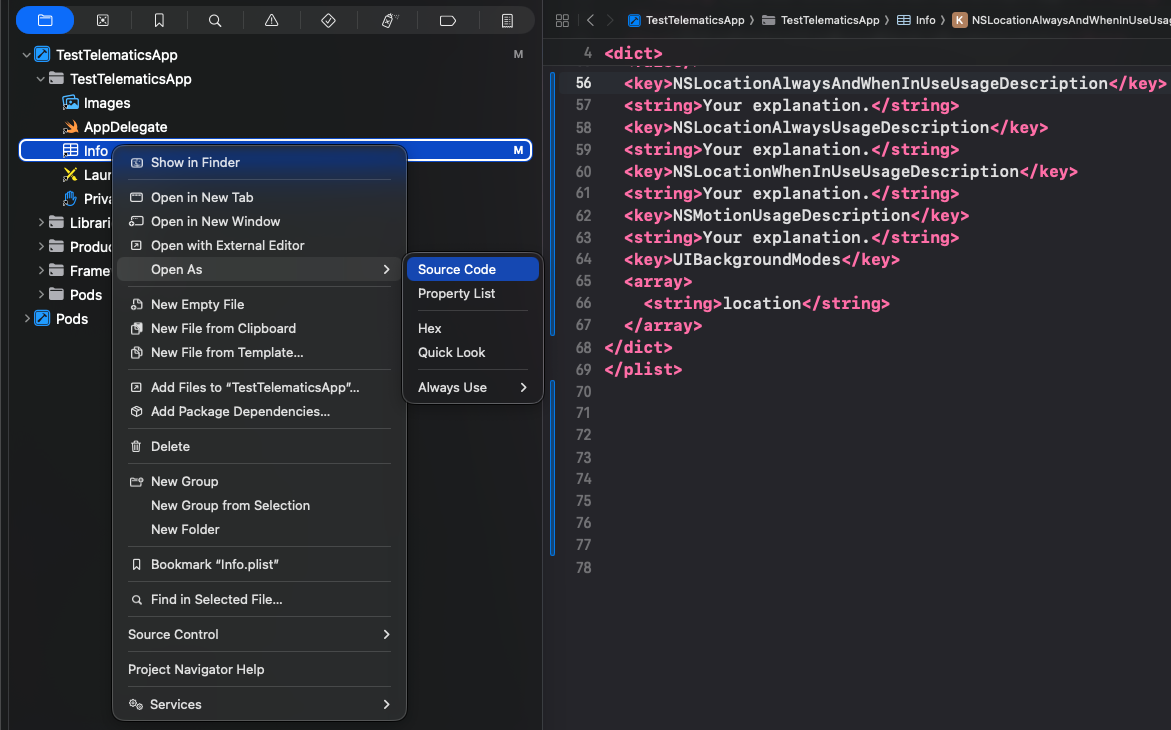
Image 1 - Info.plist example
And here you can see the result:
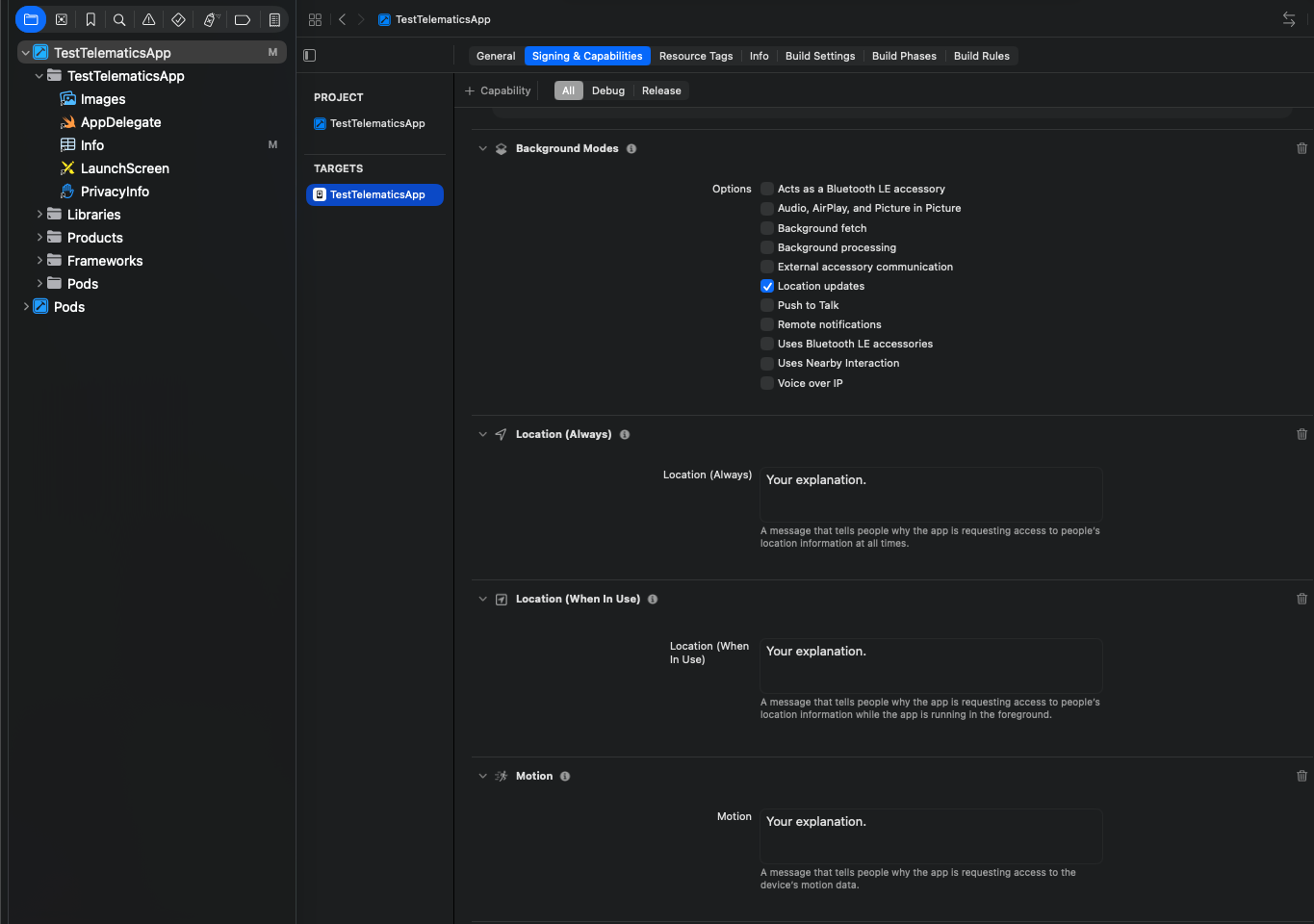
Image 2 - Required capabilities