Integration Guide (CocoaPods)
1. Overview
The TelematicsSDK for iOS can also be integrated using CocoaPods as a native binary framework. It provides the same telematics capabilities as the Swift Package distribution, including telemetry control and permission handling.
Read-only access to the repository is required and is granted via a Personal Access Token (PAT) provided by Sentilant.
This guide explains how to integrate and configure the SDK using CocoaPods.
2. Prerequisites
- Xcode: version 26 or higher
- iOS: minimum deployment target iOS 17.0
The SDK requires iOS 17.0 or later to function correctly.
3. Integrate the SDK with CocoaPods
This method uses a Personal Access Token (read-only) provided by Sentilant.
The same token can be used for SPM and CocoaPods.
If your project does not yet use CocoaPods, create a Podfile at the root of your iOS project (next to the .xcodeproj or .xcworkspace file) before adding the SDK dependency.
3.1 Podfile configuration
Add the SDK to your Podfile using the HTTPS URL with the telematics-sdk-token username:
pod 'TelematicsSDK',
    :git => 'https://telematics-sdk-token@github.com/DrivianTelematics/telematics-sdk-ios.git',
    :tag => '1.8.4'
Replace 1.8.4 with the latest release version if a newer one is available.
Note: The
telematics-sdk-token@prefix is required to ensure Git correctly resolves the stored credentials when CocoaPods installs private dependencies. No credentials or tokens are embedded in the Podfile.
Podfile Example
This Podfile example shows the minimal required configuration to integrate the SDK:
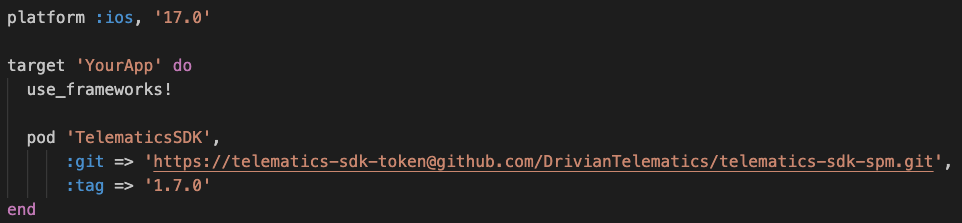
Image 1 - Podfile example
3.2 Local development (macOS)
When running pod install for the first time, CocoaPods will automatically prompt for credentials to access the private repository.
When prompted for the password, enter the Personal Access Token (PAT) provided by Sentilant.

Image 2 - Password prompted
The credentials will be securely stored in the macOS Keychain and automatically reused by CocoaPods on subsequent executions, including:
pod install
or
pod update
No additional setup is required for standard local development.
Note: The Personal Access Token is requested by Git during the pod install process and is not stored in the Podfile or project files.
3.3 Disable User Script Sandboxing (Required)
To successfully embed the TelematicsSDK XCFramework using CocoaPods, User Script Sandboxing must be disabled for the application target.
This is required because CocoaPods uses a build phase script ([CP] Embed Pods Frameworks) to copy and embed binary frameworks, which is not compatible with User Script Sandboxing.
In Xcode:
- Select your app target
- Open Build Settings
- Search for User Script Sandboxing
- Set the value to No
Why this is required
This setting affects only build-time scripts and does not impact the runtime security, permissions, or sandboxing of your iOS application. Disabling it is a common and accepted requirement when integrating binary XCFrameworks via CocoaPods.
Notes
- Always reference a published release tag (e.g.
1.8.4). - To update the SDK, change the
:tagvalue in your Podfile and runpod install. CocoaPods always resolves the exact tag you specify. - Do not embed tokens directly in the Podfile.
- Access can be revoked at any time by rotating or removing the provided credentials.
- After running
pod install, always open the project using the generated.xcworkspacefile (not the.xcodeproj). CocoaPods integrates dependencies through the workspace, and opening the.xcodeprojdirectly may result in the SDK module not being found.